With the inclusion of the “Good night, Good luck” update volatiles now roam the streets at night, posing a new challenge for players and making the experience similar to the first entry.
The problem I and many players encountered though, is that this new “feature” seems to not have been tested properly, as it makes the early game really frustrating and annoying, possibly harming the experience for newcomers.
The purpose of this guide is to teach in a simple way how to modify the game in order to disable roaming volatiles patrolling the streets at night.
Contenido
Disclaimer and recommendations
- Please, make a backup of your saves first, corruption may happen when incorrectly modifying these files.
- It is recommended to play with community events disabled, as some of them (if not all) will most likely override your changes.
Modding the game
In this case I’ll be using 7zip and Window’s notepad.
- Locate the installation folder
Right click into your game, select properties and click “Show installed files” - Make a copy of “Dying Light 2\ph\source\data0.pak” and rename it to “data2.pak”
- Open “data2.pak” with 7zip and extract the file “scripts\aipresetpool.scr”
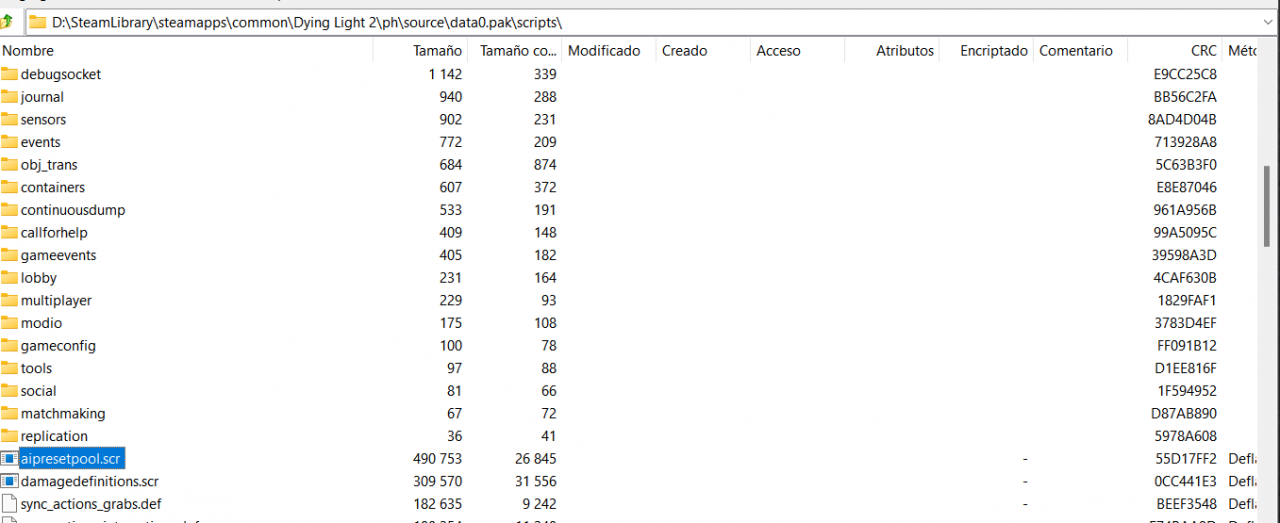
- Once you have extracted the file you’ll have to delete all contents stored inside “data2.pak”
Select all files and delete them using 7zip in built options - Open you copy of “aipresetpool.scr”, press Ctrl + B and type in “roaming”
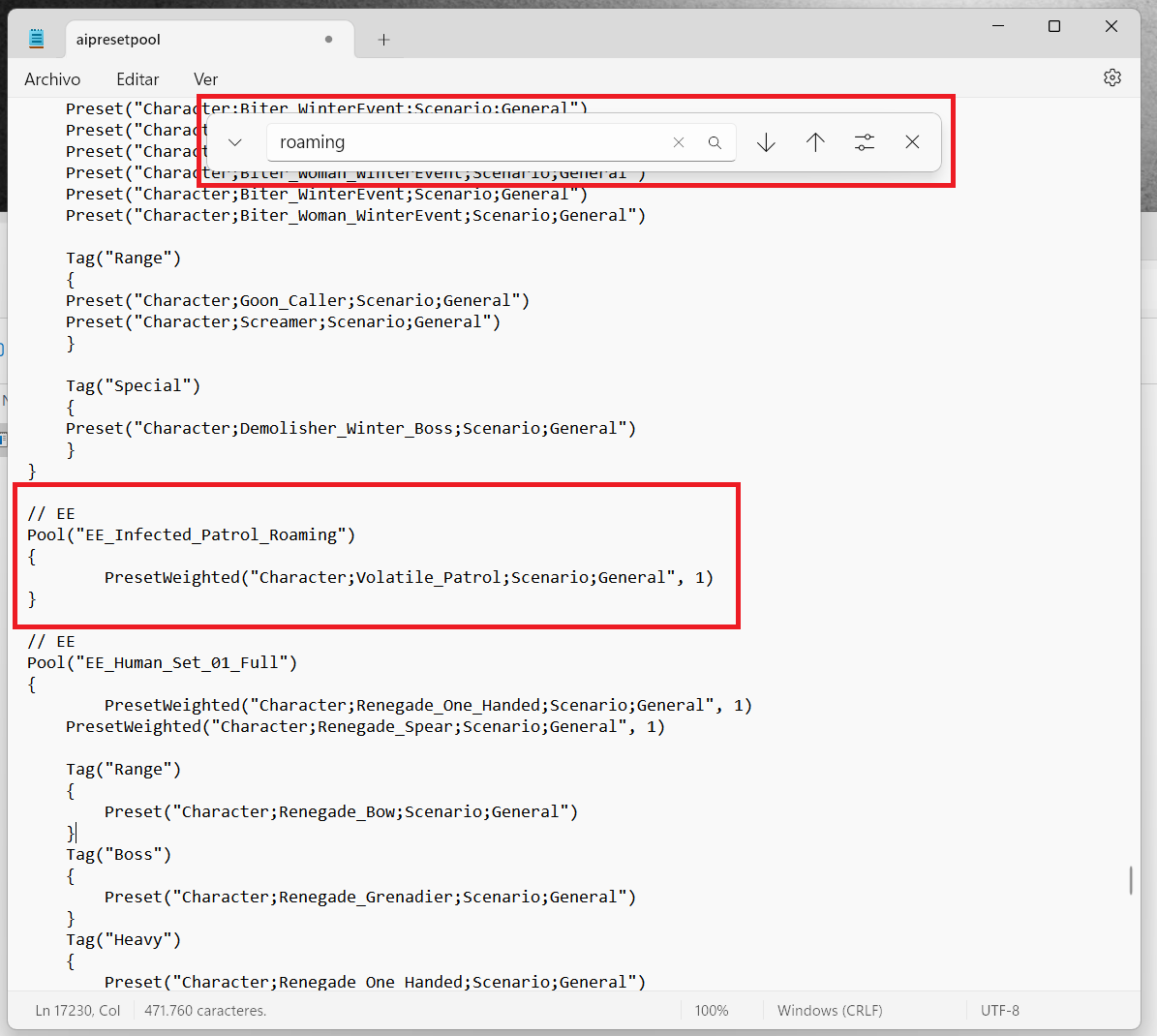
- Inside the section “EE_Infected_Patrol_Roaming” you’ll have to change the value 1 with 0
PresetWeighted(“Character;Volatile_Patrol;Scenario;General”, 0)
- Save and close the file. Afterwards, create a folder named “scripts” and move your file inside
- As for the final step, open “data2.pak” with 7zip and drag and drop the script folder with the modified file inside.

Uninstallation
The post Dying Light 2: How to Disable Roaming Volatiles appeared first on ..
Acerca del autor